
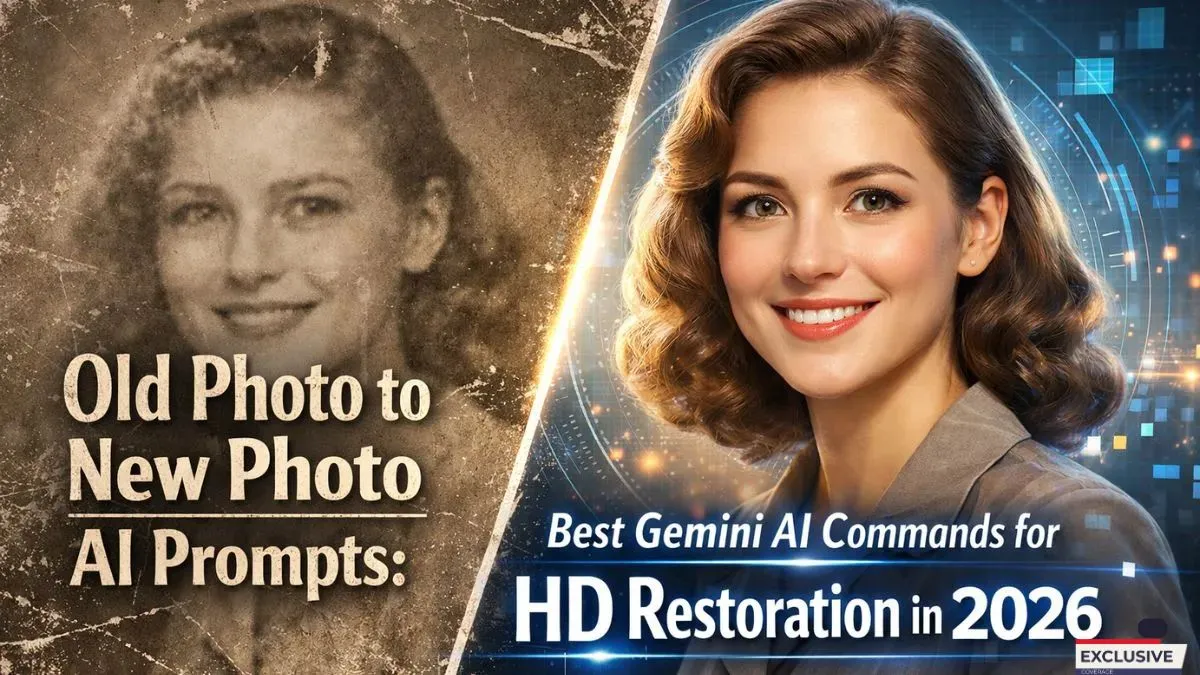
Preserving memories has never been easier thanks to AI technology. Many old family photos, vintage pictures, or even blurry shots can now be restored with just a few clicks using Gemini AI. This AI tool can transform your old, faded images into crisp, high-definition (HD) photos that look like they were taken yesterday.
In this article, we’ll guide you through the best Gemini AI prompts for restoring old photos in 2026. You’ll discover step-by-step instructions, tips for achieving realistic results, and how to make your images shine for social media, printing, or personal keepsakes. Even if you are a beginner, this guide will simplify the process for you.
Understanding AI Photo Restoration
AI photo restoration uses advanced algorithms to repair damaged or low-quality images. Gemini AI is designed to detect scratches, color fading, and blur, then automatically fill in missing details. Unlike manual editing, which can take hours or even days, Gemini AI does the work almost instantly. This technology is perfect for restoring old family portraits, historical pictures, or even turning black-and-white photos into realistic color versions.
The key advantage of using Gemini AI is its ability to maintain natural details. Many AI programs over-sharpen images, making them look artificial. Gemini AI, however, focuses on realism, ensuring your restored photos preserve facial expressions, textures, and lighting exactly as they should. For anyone looking to digitize their photo collection or share high-quality images online, this AI is a game-changer.
Best Gemini AI Commands for HD Photo Restoration
Using the right AI prompts is essential for getting professional-quality results. Gemini AI relies on user commands to understand what changes to make. Here are the best prompts for HD restoration in 2026:
1. Restore Detail
Prompt: “Restore all missing details, repair scratches, and sharpen textures for HD output.”
Use this when your old photo has visible damage, like cracks, folds, or dust. Gemini AI will automatically reconstruct the missing parts, making it look complete.
2. Enhance Colors
Prompt: “Enhance colors while keeping natural skin tones and lighting intact.”
This works perfectly for faded color photos or black-and-white images that need colorization. It gives the image a modern, vibrant look without overdoing it.
3. Upscale to HD
Prompt: “Upscale photo to HD 1080p, maintain clarity and detail in faces and background.”
This command improves resolution, which is essential if you plan to print or display the photo online. It ensures every detail is sharp and clear.
4. Face Refinement
Prompt: “Refine faces while preserving natural expressions, remove blur and imperfections.”
Old photos often have blurry faces due to camera limitations. This prompt focuses on improving facial clarity while keeping them realistic.
5. Background Cleanup
Prompt: “Clean up background noise and enhance overall photo quality.”
If your photo has messy or distracting backgrounds, this command helps create a cleaner, more polished look without losing focus on the main subjects.
6. Old Photo Colorization
Prompt: “Convert black-and-white photo to realistic color with accurate skin tones, clothing, and background.”
This is perfect for historical photos, giving them a fresh and modern appearance while keeping them authentic.
Step-by-Step Guide to Using Gemini AI Prompts
- Upload Your Photo – Start by uploading your old photo into Gemini AI. It supports various formats like JPG, PNG, and TIFF.
- Choose Your Goal – Decide if you want to restore, colorize, or upscale your image.
- Select Prompts – Use the prompts listed above based on your photo’s needs. You can combine multiple commands for a complete transformation.
- Preview Results – Gemini AI generates a preview in seconds. Check for natural-looking details and colors.
- Fine-Tune – Adjust brightness, contrast, or sharpness if necessary. Gemini AI allows manual tweaks for perfection.
- Download and Save – Once satisfied, save your photo in HD format for printing, sharing, or archiving.
By following these steps, anyone can turn old, damaged images into stunning HD photos with minimal effort.
Tips for Better Photo Restoration
- Start with the Best Quality Scan – Even AI works better with higher-quality scans of old photos. Use a scanner or a high-res smartphone camera.
- Avoid Over-Editing – Excessive sharpness or color saturation can make photos look fake. Stick to natural enhancement.
- Use Multiple Passes – Sometimes restoring and then enhancing colors in separate steps yields better results than doing everything at once.
- Experiment with Prompts – Gemini AI allows custom commands, so try slight variations like “restore skin textures naturally” or “enhance vintage look.”
- Check for Consistency – After colorization, ensure all elements like skin, hair, and clothes maintain consistent tones.
Why Gemini AI is the Best Choice in 2026
Gemini AI stands out among photo restoration tools because it balances speed, quality, and simplicity. Unlike traditional software that requires professional expertise, Gemini AI is beginner-friendly but still delivers expert-level results. In 2026, its algorithms are optimized for HD output, color accuracy, and facial refinement.
Additionally, Gemini AI works across multiple platforms, including desktop and mobile. This means you can restore photos anywhere, anytime. Its user interface is intuitive, so you don’t need extensive editing knowledge. By combining AI prompts effectively, you can achieve results that were once only possible with professional retouching.
Common Use Cases for AI Photo Restoration
- Family Heritage Preservation – Restore old family photos to create albums for future generations.
- Social Media Sharing – Transform old photos into HD quality for Instagram, Facebook, or TikTok.
- Historical Projects – Improve images for museums, school projects, or historical archives.
- Professional Prints – Convert old photos into gallery-quality prints.
- Memorable Gifts – Create personalized gifts with restored images for birthdays, anniversaries, or holidays.
Conclusion
Gemini AI makes restoring old photos easy, fast, and realistic. With the right prompts, even a beginner can turn faded or damaged images into HD masterpieces. By following the step-by-step guide and using the recommended prompts, you can preserve precious memories, create stunning prints, and share high-quality images online.
In 2026, AI photo restoration is more accessible than ever, helping you keep your memories alive in the best quality possible.
FAQs
1. Can Gemini AI restore severely damaged photos?
Yes, it can fix cracks, scratches, and faded areas, but extremely damaged parts may require manual touch-ups for perfect results.
2. Is colorization realistic?
Gemini AI uses advanced algorithms to preserve natural skin tones and clothing colors, giving realistic colorization.
3. Do I need a high-end computer?

No, Gemini AI works on both desktops and mobile devices with basic requirements.
4. How fast is the restoration process?
Most photos are processed within seconds, depending on resolution and complexity.
5. Can I use multiple prompts at once?
Yes, combining prompts like “restore detail” and “enhance colors” often gives the best results.